
Have you ever installed a Python library for one project and then discovered that another project expects a different version? Or tried to run a tutorial only to see ModuleNotFoundError? These situations often come from mixing dependencies across projects. A Python virtual environment helps by giving each project its own place to install packages, without changing the packages used by your other projects.
This guide explains what virtual environments do, why they matter, and how to use venv and pip on Windows, macOS, and Linux. You will also build a small working example, export dependencies, and troubleshoot common setup problems. The commands are based on the official Python venv documentation and the Python Packaging User Guide; outcomes can vary with your installed Python version and operating system.
Quick Facts: Python Virtual Environments
venvis part of Python’s standard library and creates isolated environments for individual projects. Source- A common directory name for an environment is
.venv, placed inside the project folder. Source - Activating an environment changes which Python executable your shell finds first; activation is convenient but not mandatory. Source
- Using
python -m piphelps runpipthrough the intended Python interpreter. Source - Virtual environment folders should normally be excluded from version control and recreated when needed. Source
What Is a Python Virtual Environment?
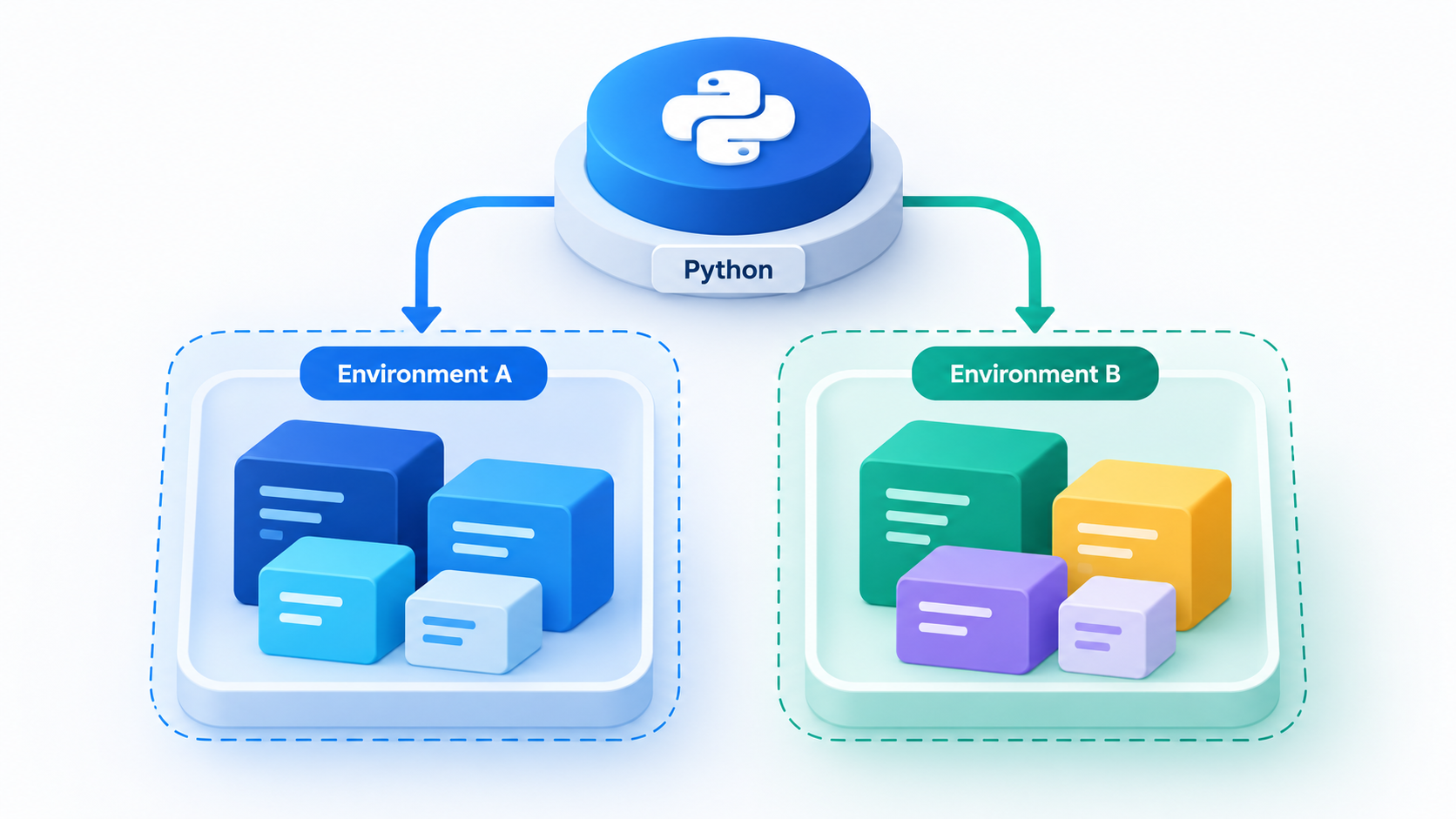
A virtual environment is a project-specific Python environment that has its own interpreter entry point and package installation directory. It is created from an existing Python installation, sometimes called the base interpreter. Packages installed into one environment are normally invisible to a different environment unless you intentionally change the isolation settings.
Imagine maintaining two projects. Project A uses an older release of a library because it has not yet been upgraded. Project B needs a newer release for a new feature. Installing both into a single shared environment can cause dependency conflicts. With venv, each project can install the release it needs. You can then work on either project without constantly uninstalling and reinstalling packages.
A virtual environment is not the same as a container or a complete copy of your operating system. It isolates Python package installation, but it does not independently isolate system services, network access, files, or operating-system processes. Think of it as a focused tool for managing Python dependencies—not a security sandbox.
Why Developers Use Virtual Environments
Keep project dependencies separate
Different projects can depend on different libraries or versions. A virtual environment prevents most accidental interference between their Python package sets. This is especially useful when studying several tutorials, building websites with frameworks, or maintaining an older application while starting a new one.
Make development easier to reproduce
Separating dependencies allows you to record what a project needs. Another developer can create a fresh environment and install the specified packages. This does not, by itself, guarantee identical behavior across operating systems or Python versions, but it makes dependencies easier to understand and manage.
Avoid modifying system-managed Python
Some operating systems use Python for their own tools. Installing packages directly into a system-managed interpreter can create conflicts or be restricted by the operating system. Using a project environment is generally a safer and cleaner habit. The Python Packaging User Guide recommends virtual environments when working with third-party packages.
Global Python vs Virtual Environment: Comparison
| Feature | Shared / Global Environment | Project Virtual Environment |
|---|---|---|
| Package installation | May affect multiple projects using that interpreter | Targets one project-specific environment |
| Different package versions | More likely to create conflicts | Can differ between projects |
| Team handover | Installed packages may be hard to identify | Dependencies can be documented and recreated |
| Project cleanup | Removing packages may affect other work | You can usually delete and rebuild .venv |
| Typical recommendation | Use with care for managed or system installations | Preferred for most third-party project dependencies |
Important: A virtual environment does not automatically pin library versions. You still need a dependency file or an appropriate project management tool if you want to record which versions you installed.
Before You Start: Check Python and pip
Open a terminal in your project folder. On Windows you can use PowerShell or Command Prompt. On macOS or Linux, use your usual terminal application.
Check the installed Python version
Windows:
py --versionmacOS or Linux:
python3 --versionIf Windows reports that py is not recognized, try python --version instead; exact launch commands depend on how Python was installed. If no Python interpreter is available, install a supported version using the official Python downloads page or your operating system’s supported installation method.
To check pip, use the interpreter you expect to run:
python -m pip --versionOn macOS/Linux before activation, replace python with python3 when necessary. If pip is missing or managed externally, follow the official packaging instructions rather than installing packages into an unknown interpreter.
How to Create and Activate a Python Virtual Environment
Step 1: Create a project folder
Keep your example files in a dedicated directory. For example, create a folder named weather-demo and open a terminal inside it. The name does not matter; a predictable folder structure does.
Step 2: Create the environment
Windows:
py -m venv .venvmacOS or Linux:
python3 -m venv .venvThis command creates a .venv directory containing the environment’s Python executable and supporting files. You generally create an environment once per project; you do not need to recreate it every time you open the project.
Step 3: Activate the environment
Windows Command Prompt:
.venv\Scripts\activate.batWindows PowerShell:
.\.venv\Scripts\Activate.ps1macOS/Linux using Bash or Zsh:
source .venv/bin/activateAfter activation, many terminals show (.venv) before the prompt. That label is convenient, but the most reliable check is to inspect the interpreter path.
Step 4: Verify the active interpreter
Windows Command Prompt:
where pythonWindows PowerShell:
Get-Command pythonmacOS/Linux:
command -v pythonThe selected path should point inside your project’s .venv folder. You can also check programmatically:
python -c "import sys; print(sys.prefix != sys.base_prefix)"This typically prints True when the active interpreter belongs to a virtual environment. The check compares environment prefixes; it is not a statement about network or filesystem isolation. Python documents this behavior.
Step 5: Deactivate when finished
deactivateDeactivation returns your shell to its previous Python selection. Closing the terminal also ends that activation for the session; your .venv folder remains available for future use.
Install Packages with pip and Track Dependencies
Install a package into the activated environment
With the environment activated, install requests, a commonly used third-party HTTP client library:
python -m pip install requestsUsing python -m pip is a useful habit because it makes the package installer follow the currently selected Python interpreter. Check the installation with:
python -m pip show requestsCreate a requirements file
A basic way to record installed dependencies is to export them to requirements.txt:
python -m pip freeze > requirements.txtThe file lists installed distributions and versions. It can include transitive dependencies, not just the packages you installed deliberately. That makes it useful for a snapshot, although it is not always the best long-term dependency specification for every project.
To recreate the environment on another machine, create and activate a fresh .venv and then run:
python -m pip install -r requirements.txtFor stricter reproducibility, record the intended Python version as well and consider a dedicated dependency-locking workflow. Packages can behave differently across operating systems, interpreters, and architectures even when the version numbers are the same.
Practical Example: A Small Python Project
Consider a student learning how to retrieve information from a web page. They want to experiment with an HTTP client without mixing that package into unrelated coursework. A dedicated environment keeps the experiment contained.
Create the project structure
weather-demo/
    .venv/
    app.py
    requirements.txt
    .gitignore
The weather-demo name is just an example. This program does not fetch weather data; it demonstrates making an HTTP request to a stable documentation/example endpoint. You could later replace the URL with an authorized API relevant to your project.
Add the Python code
Save the following as app.py:
import requests


def main():
    url = "https://example.com/"
    try:
        response = requests.get(url, timeout=10)
        response.raise_for_status()
        print("Request succeeded")
        print("HTTP status:", response.status_code)
    except requests.RequestException as exc:
        print("Could not fetch the page:", exc)


if __name__ == "__main__":
    main()
Run it inside the activated environment:
python app.pyWhat the program does: It imports the third-party requests package, sends an HTTPS GET request, checks for HTTP errors, and prints either a status message or a request-related error. The exact output depends on connectivity, TLS configuration, and the remote server’s response. The example is instructional, not a claim that any particular output was observed.
Now think about a second project using a different library or dependency version. Give that project its own .venv, and the two projects will be easier to maintain independently.
Common Python Virtual Environment Errors and Fixes
| Problem | Likely Cause | What to Try |
|---|---|---|
python or py not found |
Python is missing or its launcher is not on your path | Check the installation and try the platform-appropriate interpreter command |
ModuleNotFoundError |
The package was installed into a different interpreter | Activate the correct environment and use python -m pip show PACKAGE |
PowerShell refuses Activate.ps1 |
Script execution policy blocks activation | Use the environment Python directly, or review the official PowerShell policy guidance |
No module named venv |
Python or your Linux distribution package is incomplete | Check your distribution’s Python venv package and supported installation instructions |
| Permission or externally managed environment error | Attempted installation outside an isolated project environment | Create/activate .venv and install there; avoid modifying system Python |
| Installation succeeds, but import still fails | IDE or terminal uses the wrong Python interpreter | Configure your editor to point at .venv‘s interpreter |
PowerShell activation blocked? You can still use the environment
Activation is optional. On Windows, you can run the virtual environment’s Python executable directly without changing PowerShell policy:
.\.venv\Scripts\python.exe -m pip install requests
.\.venv\Scripts\python.exe app.py
This avoids making an unnecessary global security-setting change. If you prefer activation, consult the Python documentation and your organization’s PowerShell configuration rules.
Best Practices for Python Virtual Environments
Use one environment per project
Create a separate .venv in each project directory unless you have a deliberate reason to share dependencies. This makes cleanup, experimentation, and troubleshooting more predictable.
Keep environments out of Git
Add .venv/ to the project’s .gitignore when needed, and commit your actual source code and dependency specification instead. Recent Python versions may create a suitable Git ignore file inside the environment, but an explicit project-level ignore rule is still easy to understand.
# .gitignore
.venv/
__pycache__/
*.pyc
Do not copy virtual environments between machines
Virtual environments contain paths and files tied to their creation location. They are generally intended to be recreated rather than moved or committed. A better approach is to keep your source code and documented dependencies, then build a fresh environment on the target machine.
Use trustworthy dependency sources
Install packages from trusted indexes or verified sources, check the package name carefully, and review library updates before using them in production. Isolation helps organize dependencies, but it does not make a malicious or vulnerable package safe.
Set your editor’s interpreter explicitly
If your terminal uses one interpreter while your code editor runs another, confusing import failures can occur. Choose the executable inside the project’s environment in your editor or IDE settings and verify the selection when opening a new project.
Frequently Asked Questions
1. Is a Python virtual environment necessary for every script?
No. A simple script that uses only the standard library can run without one. However, virtual environments are a good default for projects that install third-party packages, particularly when you work on multiple projects.
2. Does venv install a completely separate copy of Python?
Not exactly. It creates an environment based on an existing installation and provides a project-specific Python executable and package directories. The details of copies and symbolic links vary by platform and setup.
3. What is the difference between venv and pip?
venv creates the project environment. pip installs, upgrades, and manages Python packages within the interpreter environment you select. They solve different but complementary problems.
4. Can I have more than one virtual environment on one computer?
Yes. It is normal to have a separate environment for each project. Each project can use a different set of installed dependencies.
5. Do I have to activate a venv before running Python?
No. Activation mainly changes your shell’s command lookup path. You can directly call the environment’s Python executable—for example, .venv/bin/python on macOS/Linux or .venv\Scripts\python.exe on Windows.
6. Should I upload the .venv folder to GitHub?
Usually not. Virtual environments are often large and contain machine-specific paths. Share your code and dependency files so another developer can create a fresh environment.
7. Why does my IDE say a package is missing after I installed it?
Your IDE may be using a different interpreter from your terminal. Compare interpreter paths and configure the editor to use the Python executable inside the correct .venv.
8. Can a virtual environment protect my computer from harmful Python code?
No. A virtual environment isolates Python package installations, not system permissions or network access. Use proper security controls and only run code you trust.
Conclusion
A Python virtual environment gives each project a cleaner place to manage dependencies. The essential workflow is straightforward: create a project folder, build .venv with Python’s standard-library tool, activate the environment or call its interpreter directly, and install packages using python -m pip. Documenting the dependencies makes the project easier to hand over and rebuild.
For beginners, the biggest practical improvement is consistency. Always check which interpreter is running and which interpreter is installing packages. That small habit prevents many confusing import errors and makes Python projects more manageable as they grow.
Educational Disclaimer
This tutorial is for learning and general technical guidance. Command names and package behavior can vary according to Python release, shell, operating system, corporate security policies, and environment setup. Review commands and dependency versions before using them in production. The sample code makes a network request to an example website; its exact result is not guaranteed.
Sources and Further Reading
- Python Documentation —
venv: Creation of Virtual Environments. Official reference for environment creation, isolation and activation. - Python Packaging User Guide — Install Packages Using pip and venv. Official setup, package installation, and requirements-file guidance.
- Python Tutorial — Virtual Environments and Packages. Official conceptual introduction and examples.
- Python.org — Downloads. Official Python installation resources.
Leave a Reply